

The Slots Lobby
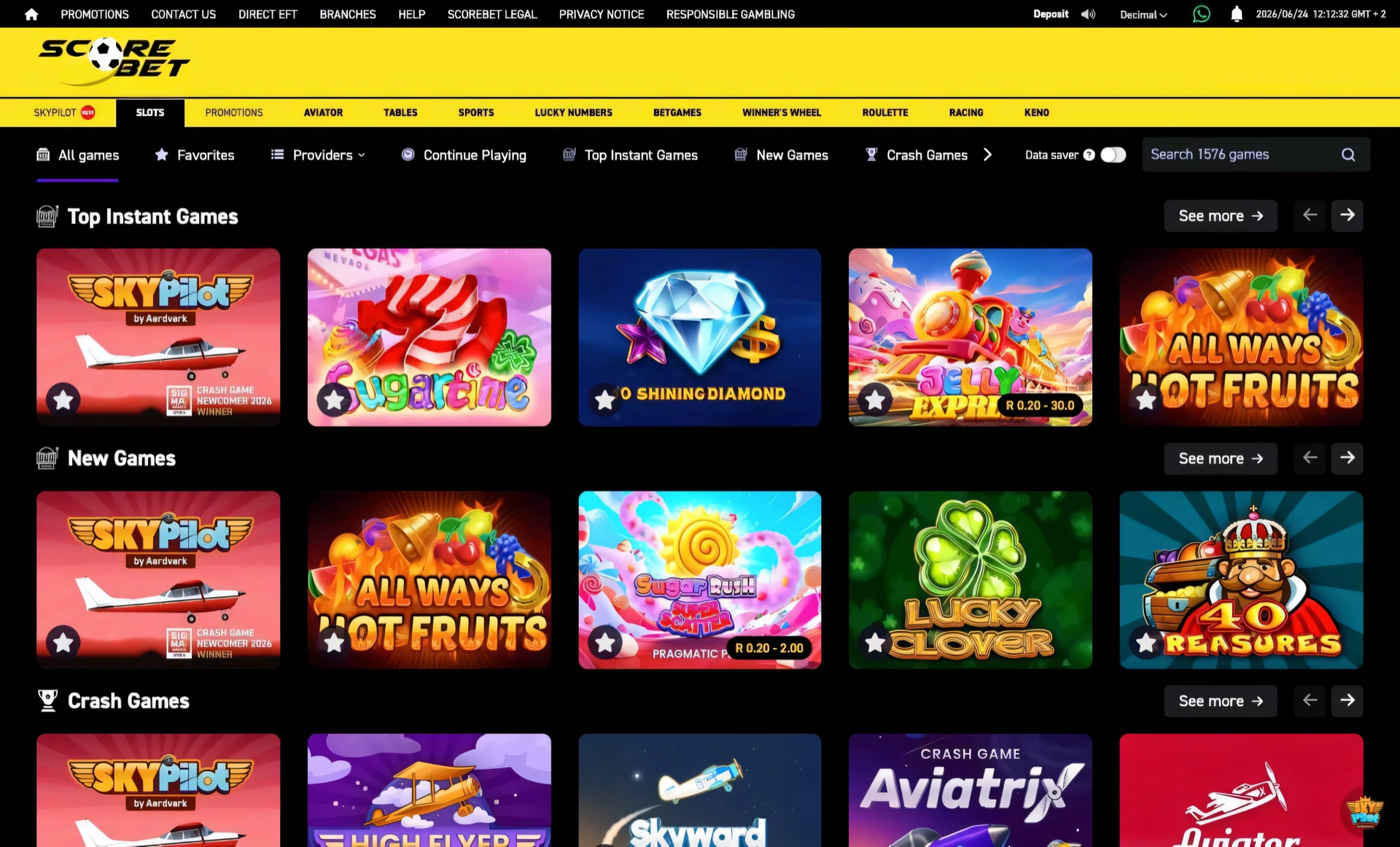
The slots lobby is where every session starts, and Scorebet builds it to surface games rather than bury them. The moment you tap SLOTS, three rows load without a scroll — the most-played Top Instant Games, the latest New Games, and the fast-paced Crash Games like Aviator and Skyward. That layout means the popular and the new are always in front of you the instant the page opens.
The real time-saver is the filter bar. Instead of hunting through a single endless grid, you tap a tab and the whole view narrows — All games, Favorites, Continue Playing, or a single category. Pair that with the star icon, which drops any game into your Favorites, and you build a personal shortlist that survives between visits. To pull the list down to one studio’s catalogue, jump to browsing by provider; to go straight to a game you already know, use the search box.
If you’re new to the games themselves, it’s worth reading how online slots work before you start spending, then come back to the lobby and pick a title from the cards below.
Place it on Scorebet, step by step
- 1Open the slots section
Click the SLOTS tab in the yellow navigation bar at the top. The lobby loads immediately, showing the latest game categories.
- 2Browse the three rows
The lobby is split into Top Instant Games, New Games and Crash Games. Each row has a See more button and left/right arrows to page through it.
- 3Use the filter bar
Below the navigation is a filter strip. Tap any tab — All games, Favorites, Providers, Continue Playing, Top Instant Games, New Games or Crash Games — to refilter the lobby instantly.
- 4Pick a game
Click any game thumbnail to open it. The game launches in a player view on the same page, and the Data saver toggle on the right of the filter bar trims image quality if you're on limited data.
Star your regulars. The star icon on every tile adds a game to Favorites, so your most-played slots are one tap away under the Favorites filter next session.
On a tight data bundle? Flick on Data saver in the filter bar — the thumbnails load lighter and the lobby moves faster, with no effect on the games themselves.
Frequently asked
What sections does the Scorebet slots lobby open on?
Three rows load straight away — Top Instant Games (the most-played picks), New Games (freshly added titles) and Crash Games (fast multiplier games like Aviator). Each row has a See more button and left/right arrows, so you never have to scroll far to find a category.
What does the star icon do on a slot tile?
Tapping the star on a game tile adds it to your Favorites list. Once a game is starred it shows up under the Favorites filter, so you can jump straight back to the slots you play most without searching for them again.
Does the Top Instant Games row show the games most likely to pay?
No — that row is ranked by how much players spin a title, not by how generously it pays. Popularity tracks theme, brand and recency far more than return-to-player, so a packed shelf tells you a game is fashionable, not loose. If payout behaviour matters to you, read the game's own RTP and volatility rather than its place in the lobby.
What does the Continue Playing filter actually track?
It surfaces games you had open recently so you can jump back in, but it is just a shortcut to the title — it does not save or restore an unfinished round, a bonus in progress, or any credit you left on the game. Slots settle every spin, so there is nothing held over; the filter only saves you the search.